Full screen or a selected region
A whole-screen result helps with menus and quest logs. A region focuses recognition on a dialogue box when the rest of the screen is crowded.
Game translator
Translate the text visible in a game without copying it or switching apps. Choose a whole screen or just the area you need.
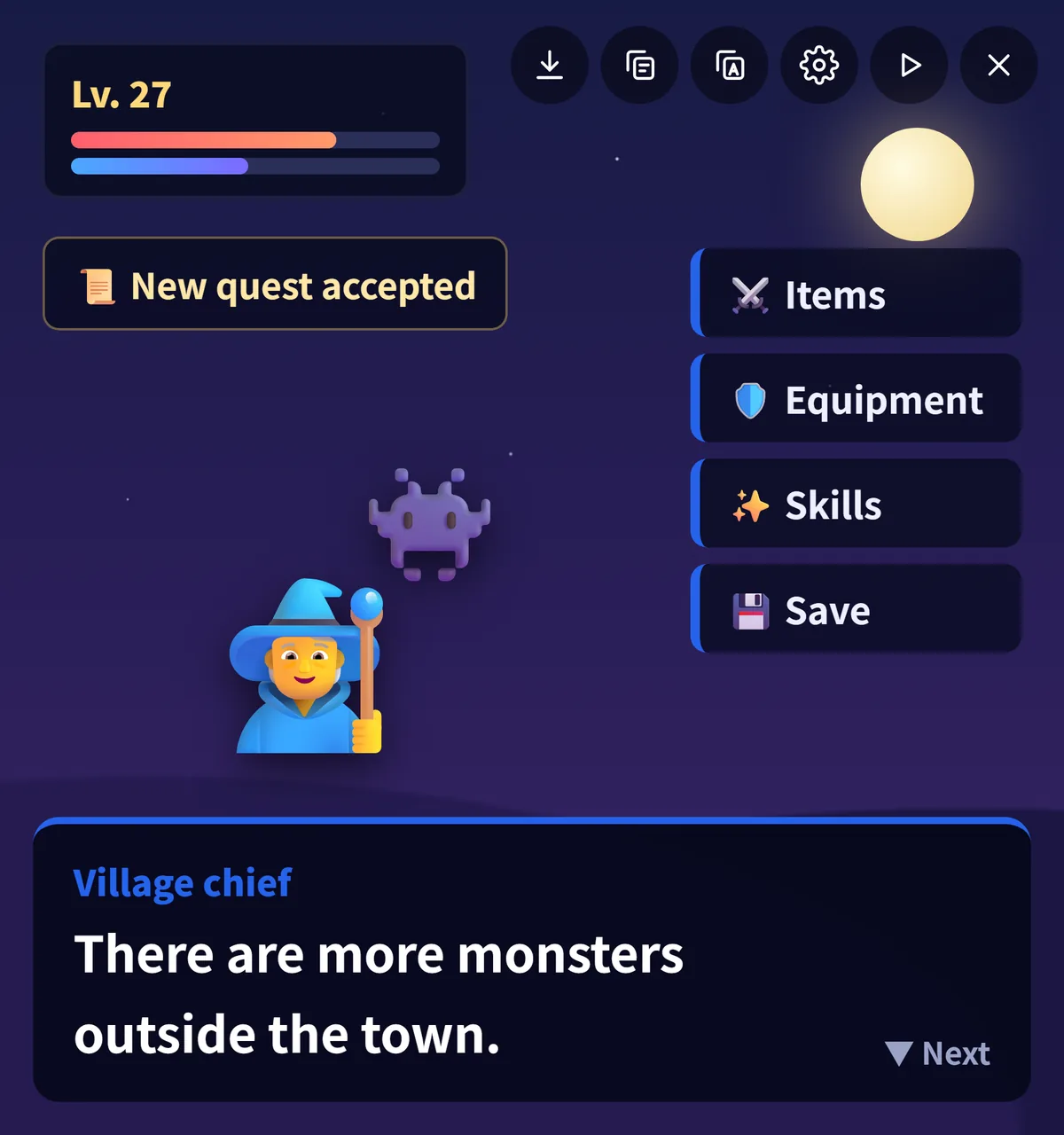
Open Screen Translate, choose your languages and enable the floating ball and required screen permissions.
Use full-screen translation for menus and quests, or select a region around a dialogue box.
Tap to translate, or use auto translation as the content changes. Add recurring names and terms to your glossary.
A whole-screen result helps with menus and quest logs. A region focuses recognition on a dialogue box when the rest of the screen is crowded.
Save useful names and terms in your personal glossary. Check a translation in context before applying it to later dialogue.
Some apps protect their screens from capture. When capture is blocked, this app cannot read that protected screen. Translation quality also depends on the source image, language and selected engine.
This workflow translates visible on-screen text, including dialogue and menus.
Yes. The floating ball lets you request a screen translation over the game after the required permissions are granted.
Start with full screen for an interface, region for one dialogue box, and auto translation for content that changes.
Translate a batch of comic images from the home page, or use the floating ball while reading. Choose the workflow that fits your pages.
Read the guide →Open a photo or take a new one. Read the translated image with text placed to follow the original colours, angle and layout.
Read the guide →Translate the text visible in a game without copying it or switching apps. Choose a whole screen or just the area you need.
Read the guide →Translate the visible subtitle text in a video or live stream. Select its area so the app can focus on the dialogue you are following.
Read the guide →